Adobe Best Practice Guide
1 Adobe Best Practices
- Name variables all lowercase with no spaces; use underscores if separating words
- Use radio buttons whenever possible
- Use the
alignfeature andmatch sizeto when creating variables - When creating forms in Word, give space for the Adobe buttons that will eventually be created
- Make sure you are using same naming conventions
tcidwavecoder_namedate_codedcoder(for 1, 2, 3 variable)given_opp_to_playplay_taskpc_presenttask_start_timetask_stop_timetask_length
- Keep it clean
- Keep consistent naming conventions within (and across) forms
- For fonts in the fields, in general, use auto. However, this can be changed if problematic.
- To reset forms, copy and paste the variables, then delete what you pasted, and it will be cleared.
- Calculated fields should NOT be calculated off of already calculated fields. Fields should only be calculated off of fields that are manually inputted. For more information on this, see creating time calculations
2 Converting Word Documents to PDFs
Before converting forms to pdfs, all required edits to the document should be made in Microsoft Word. Edits of content or formatting should be completed and finalized in Word before converting the document to a pdf. To convert a Word document to a pdf, complete the following steps:
- Open the document in Microsoft Word
- Click the “File” tab in the top left corner within the Word interface
- Select “Save as ADOBE PDF”
- Name the new pdf accordingly
3 Editing pdfs in Adobe
Open pdf in Adobe Acrobat Pro 2020
- Note: Editing of pdfs must be done in Adobe Acrobat Pro 2020, not Adobe Acrobat
Under the “Tools” tab in the top left corner of the Adobe interface, find the heading “Forms & Signatures” and select “Prepare Form”
Select “Start” to begin scanning and preparation of the pdf
The “Prepare Form” tool bar should now be visible, allowing for the addition of text fields, radio buttons, check boxes, and more
3.2 Naming Convention for Variables in Adobe
- Variable names should be in all lowercase with no spaces and underscores separating words
- Keep variable names as consistent as possible across forms with similar variables
- The following are common names for variables which should be used when applicable:
- Identifying information:
- TCID:
tcid - Wave:
wave - Coder Name:
coder_name - Date Coded:
date_coded - Coder:
coder(for 1, 2, 3 variable) - Was TC given the opportunity to play the task:
given_opp_to_play - Did TC play the task:
play_task - PC Present:
pc_present - Did TC pass the imitation trials:
pass_imitation - Did TC pass the comprehension check:
pass_comprehension - Did TC pass the practice trials:
pass_practiceX - Start time:
task_start_time - Stop time:
task_stop_time - Length of administration:
task_length - Coder 1/2/3:
initials_date_coderX
- TCID:
- Task Trials
- Imitation Trials:
imitation_trials_x - Imitation Trials Second Administration:
imitation_trials_readmin_x - Comprehension Check:
comp_checkX_x - Practice Trials:
practice_trialsX_x - Test Trials:
test_trialsX_x - Note: “X” signifies the round/block of the trials while “x” signifies the trial number within that round/block (ex:
practice_trials2_7). An “X” within the variable name is only necessary if there are multiple rounds/blocks for the trial. Thus, if there is only one round of imitation trials, those trials should be simply namedtest_trialsrather thantest_trials1.
- Imitation Trials:
- Trial Totals
- Total Incorrect:
total_incorrect_task_trials - Total Initially incorrect, but changed to correct:
total_initially_task_trials - Total Correct:
total_correct_task_trials - Total No Response:
total_noresponse_task_trials - Total Uncodeable:
total_uncodeable_task_trials - Total # of Scoreable Trials Played:
total_scored_task_trials - Note: “task_trials” should be replaced with whether the round/block of trials is
imitation_trials,comp_check,practice_trials, ortest_trials.
- Total Incorrect:
- Identifying information:
3.2.2 Naming Convention for Check Boxes
Check boxes can be named in such a way that they act similar to radio buttons, allowing only one selection out of a group of check boxes.= A group of check boxes can be formatted as radio buttons through the following steps:
- Input the same variable name for each check box within the group to be formatted
- Right click on each check box and select “Properties”
- Under the “Options” tab, set the “Export Value” for each check box according to the following values:
- “Correct” column = 2
- “Incorrect” column = 0
- “Initially incorrect but changed response to correct” column = 1
- “No response” column = -9
- “Uncodeable” column = 9
- With each check box named the same but also each with a different export value, the group of check boxes should now operate similar to a group of radio buttons
- Within the group, only one check box should be able to be selected
- Additionally, the selection should be able to be unselected
- While both groups of radio buttons and this form of groups of check boxes operate the same way and permit only one selection within the group, groups of check boxes provide an advantage by allowing for deselection of the value. Within groups of radio buttons, as soon as a button is selected, the group of buttons cannot be reset or deselected. This usage of groups of check buttons may be useful going forward and should be considered when creating new coding forms.
- Note: Creating calculated fields from groups of check boxes will follow the same procedure as creating calcuated fields from radio buttons. Thus, it is important to ensure the export values for each check box follow the values listed in Step 3.
3.4 Creating Actions in Adobe
Radio buttons, check boxes, text fields, and action buttons can all be assigned specific actions upon clicking them. The most common actions used are: * Clearing or reseting a field(s) or an entire form * Hiding/revealing a field(s)
To assign a radio button, check box, text field, or action button an action, complete the following steps:
- Right click on the object (the radio button/check box/text field/action button in question) to which an action is to be assigned
- Select the “Actions” tab
- Within the “Add an Action” interface, for “Select Trigger:” ensure the response of
Mouse Upis selected- This configures the action to be executed when the object is clicked upon with the user’s mouse
- Within the “Add an Action” interface, for “Select Action:” choose the desired action to be assigned to the object from the drop-down menu
- To clear/reset a field:
- Select
Reset a form
- Select
- To hide/reveal a field:
- Select
Show/hide a field
- Select
- To clear/reset a field:
- Within the “Add an Action” interface, select “Add…” to implement the chosen action to the object
- Upon clicking add, a separate window will appear asking you to specify which fields the action should be applied to
- If clearing/reseting a field:
- Mark all the check boxes of all the fields to be rest
- Select “OK”
- If hiding/revealing a field:
- Select the name of the field to be hidden/revealed
- On the right, select the radio button selection for whether the action should
ShoworHidethe field - Select “OK”
- Upon selection of “OK,” the action should now appear within the “Action” box at the bottom of the tab
- In order to edit the action, select the action to be edited and then select “Edit” at the bottom of the interface
- Multiple actions can be assigned to the same object. Thus, repeat steps 1-6 as many times as needed to assign the necessary actions to a given object
4 Creating Calculated Fields
Adobe Acrobat both includes its own functions for creating calculated fields and allows for the implementation of custom calculation scripts within forms. While the calculation features are built-in to Adobe, the custom calculation scripts must be written using the programming language JavaScript. The following sections detail how to create different types of calculated fields.
4.3 Creating Calculated Fields from Check Boxes
Prepare the check boxes for calculation:
Provide the check boxes from which the field will be calculated with appropriate variable names, closely following standard naming convention for variables when possible
For each check box, an export value must be assigned. The export value will determine what numeric value the check box will carry throughout calculation. To set the export value, complete the following steps:
- Select and right-click on the check box and select “Properties”
- In the Properties menu, select the “Options” tab
- In the “Export Value:” field, enter the numeric value the check box should reflect
Select the text field which must be turned into a calculated field
Right-click on the field and select “Properties”
Select the “Calculate” tab within the Properties menu
Select the “Value is the
mathematical operatorsof the following fields” radio button- Note: The appropriate
mathematical operatorshould be selected according to the desired final calculation from the drop down list of “sum (+),” “product (x),” “average,” “minimum,” or “maximum”
- Note: The appropriate
Select “Pick…” and then check the variable names of the check boxes to be calculated
4.4 Breaking Down the Calculation Script
var v1 = getField("variable_group_name").value
var v2 = getField("variable_group_name2").value
var v3 = getField("variable_group_name3").value
var v4 = getField("variable_group_name4").value

if (v1 == X) {
total = 1;
} else {
total = 0;
}

if (v2 == X) {
total2 = 1;
} else {
total2 = 0;
}

if (v3 == X) {
total3 = 1;
} else {
total3 = 0;
}

if (v4 == X) {
total4 = 1;
} else {
total4 = 0;
}

event.value = total + total2 + total3 + total4The calculation script for radio buttons can be broken down into three parts:
Defining the Variables
var v1 = getField("variable_group_name").value var v2 = getField("variable_group_name2").value var v3 = getField("variable_group_name3").value var v4 = getField("variable_group_name4").value- This portion of the script defines the variables from which information is being pulled from. In nearly all cases the variables being pulled from will be the groups of radio buttons for each trial.
- The line
var v1 = getField("variable_group_name").valuedefines the selected radio button in “variable_group_name” asvar v1(variable 1) within this script and pulls the choice value from each group- Thus, within each
getField(), the name of each group of radio buttons should be added in quotations - Note: The number being pulled through this function directly corresponds to the choice value defined for each radio button in the group of radio of radio buttons. This is why it is crucial to define choice values according to the same naming convention for radio buttons
- Thus, within each
- Each
var vXshould reflect a trial on the form. Thus, if there are 15 test trials, there should be 15 lines of code fromvar v1tovar v15with the name for each group of radio buttons inputed ingetField("")for each variable
Defining the Selected Values
if (v1 == X) { total = 1; } else { total = 0; } if (v2 == X) { total2 = 1; } else { total2 = 0; } if (v3 == X) { total3 = 1; } else { total3 = 0; } if (v4 == X) { total4 = 1; } else { total4 = 0; }- This portion of code utilizes if/else statements in order to create the total value for each field
- In
v1 == Xand each subsequentv == X, theXshould be replaced with the choice value of the radio button from the group of radio buttons that corresponds to the desired field you are calculatingFor example, if a total correct field is being calculated, the code should read:
if (v1 == 2) {
total = 1;
} else {
total = 0;
}

if (v2 == 2) {
total2 = 1;
} else {
total2 = 0;
}
Because a total correct field is being calculated, the choice value of 2 should be inputed as this is the choice value which corresponds to “Correct” (see naming convention for radio buttons)
The value of 2 would be inputed for each if/else statement for each variable. Thus, if there were 15 variables, there should be 15 if/else statements
v1 == 2tov15 == 2
- The if/else statement for each variable defines that if the value pulled by the
getField()function matches the inputted choice value for the variable then the total for that variable becomes equal to 1. If it does not match, the the total becomes equal to 0.
Defining the Total
event.value = total + total2 + total3 + total4- This portion of code defines the calculation to take place in the field
- The
event.valuedetermines what appears in the text box
- The
- This line of code adds together the totals defined in the if/else statements. This produces the final calculated value for the field.
- The number of totals added together should correspond to the number of variables. Thus, if there are 15 trials, then the final line of code should read:
event.value = total + total2 + total3 + total4 + total5 + total6 + total7 + total8 + total9 + total10 + total11 + total12 + total13 + total14 + total15
The following is an example script for a calculated “total_correct_test_trials” field, calculated from 15 trials:
var v1 = getField("test_trials_1").value
var v2 = getField("test_trials_2").value
var v3 = getField("test_trials_3").value
var v4 = getField("test_trials_4").value
var v5 = getField("test_trials_5").value
var v6 = getField("test_trials_6").value
var v7 = getField("test_trials_7").value
var v8 = getField("test_trials_8").value
var v9 = getField("test_trials_9").value
var v10 = getField("test_trials_10").value
var v11 = getField("test_trials_11").value
var v12 = getField("test_trials_12").value
var v13 = getField("test_trials_13").value
var v14 = getField("test_trials_14").value
var v15 = getField("test_trials_15").value


if (v1 == 2) {
  total = 1;
} else {
  total = 0;
}

if (v2 == 2) {
  total2 = 1;
} else {
  total2 = 0;
}

if (v3 == 2) {
  total3 = 1;
} else {
  total3 = 0;
}

if (v4 == 2) {
  total4 = 1;
} else {
  total4 = 0;
}

if (v5 == 2) {
  total5 = 1;
} else {
  total5 = 0;
}

if (v6 == 2) {
  total6 = 1;
} else {
  total6 = 0;
}

if (v7 == 2) {
  total7 = 1;
} else {
  total7 = 0;
}

if (v8 == 2) {
  total8 = 1;
} else {
  total8 = 0;
}

if (v9 == 2) {
  total9 = 1;
} else {
  total9 = 0;
}

if (v10 == 2) {
  total10 = 1;
} else {
  total10 = 0;
}

if (v11 == 2) {
  total11 = 1;
} else {
  total11 = 0;
}

if (v12 == 2) {
  total12 = 1;
} else {
  total12 = 0;
}

if (v13 == 2) {
  total13 = 1;
} else {
  total13 = 0;
}

if (v14 == 2) {
  total14 = 1;
} else {
  total14 = 0;
}

if (v15 == 2) {
  total15 = 1;
} else {
  total15 = 0;
}

event.value = total + total2 + total3 + total4 + total5 + total6 + total7 + total8 + total9 + total10 + total11 + total12 + total13 + total14 + total15
4.5 Set Order of Calculated Fields
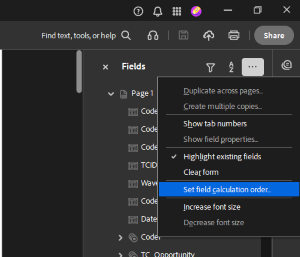
In order to ensure proper calculation after you have implemented a calculation script, you need to also check the calculation order.
- Open Prepare a Form in Adobe
- Click the three dots
...next toFields - Click
Set field calculation order - Adjust the order of the calculated fields
- Individual column calculations should come BEFORE total point calculated fields and total score calculated fields
4.6 Creating Calculated Fields with Conditional Formatting
For cases where a calculated total can change from a manually-input variable, an altered script must be used.
For example, a calculated field can be created for the total number of correct responses a participant gives to a stimulus. If what qualifies as a “correct” response depends on a variable that can be manually changed, the original calculation script will result in an inaccurate total.
Thus, the altered scripted must show that the value of the calculated total is conditional on another variable. The value of Variable X is dependent on the value of Variable Y. This can be accomplished through the usage of if/else commands in JavaScript.
Provided below is an example of a calculation script with conditional formatting:
var v1= getField("variable_X_group_name").value
var v2= getField("variable_X_group_name2").value
var v3= getField("variable_X_group_name3").value
var v4= getField("variable_X_group_name4").value
var v5= getField("variable_X_group_name5").value
var v6= getField("variable_X_group_name6").value
var v7= getField("variable_X_group_name7").value
var v8= getField("variable_X_group_name8").value
var v9= getField("variable_X_group_name9").value
var v10= getField("variable_X_group_name10").value
var v11= getField("variable_X_group_name11").value
var v12= getField("variable_X_group_name12").value
var v13= getField("variable_X_group_name13").value
var v14= getField("variable_X_group_name14").value
var v15= getField("variable_X_group_name15").value
var v16= getField("variable_X_group_name16").value


var v17= getField("variable_Y_group_name").value
var v18= getField("variable_Y_group_name2").value
var v19= getField("variable_Y_group_name3").value
var v20= getField("variable_Y_group_name4").value
var v21= getField("variable_Y_group_name5").value
var v22= getField("variable_Y_group_name6").value
var v23= getField("variable_Y_group_name7").value
var v24= getField("variable_Y_group_name8").value
var v25= getField("variable_Y_group_name9").value
var v26= getField("variable_Y_group_name10").value
var v27= getField("variable_Y_group_name11").value
var v28= getField("variable_Y_group_name12").value
var v29= getField("variable_Y_group_name13").value
var v30= getField("variable_Y_group_name14").value
var v31= getField("variable_Y_group_name15").value
var v32= getField("variable_Y_group_name16").value

if(v17 == Y1){
    if (v1 == X2){
            total=1
    }else{
            total=0
    }
}else{
    if (v1 == X1){
            total=1
    }else{
            total=0
    }
}

if(v18 == Y2){
    if (v2 == X1){
            total2=1
    }else{
            total2=0
    }
}else{
    if (v2 == X2){
            total2=1
    }else{
            total2=0
    }
}

if(v19 == Y2){
    if (v3 == X1){
            total3=1
    }else{
            total3=0
    }
}else{
    if (v3 == X2){
            total3=1
    }else{
            total3=0
    }
}

if(v20 == Y1){
    if (v4 == X2){
            total4=1
    }else{
            total4=0
    }
}else{
    if (v4 == X1){
            total4=1
    }else{
            total4=0
    }
}

if(v21 == Y2){
    if (v5 == X1){
            total5=1
    }else{
            total5=0
    }
}else{

    if (v5 == X2){
            total5=1
    }else{
            total5=0
    }
}

if(v22 == Y2){
    if (v6 == X1){
            total6=1
    }else{
            total6=0
    }
}else{
    if (v6 == X2){
            total6=1
    }else{
            total6=0
    }
}

if(v23 == Y1){
    if (v7 == X2){
         total7=1
    }else{
            total7=0
    }
}else{
    if (v7 == X1){
         total7=1
    }else{
            total7=0
    }
}

if(v24 == Y1){
    if (v8 == X2){
            total8=1
    }else{
         total8=0
    }
}else{
    if (v8 == X1){
            total8=1
    }else{
         total8=0
    }
}

if(v25 == Y1){
    if (v9 == X2){
         total9=1
    }else{
            total9=0
    }
}else{
    if (v9 == X1){
         total9=1
    }else{
            total9=0
    }
}

if(v26 == Y2){
    if (v10 == X1){
            total10=1
    }else{
            total10=0
    }
}else{
    if (v10 == X2){
            total10=1
    }else{
            total10=0
    }
}

if(v27 == Y1){
    if (v11 == X2){
            total11=1
    }else{
            total11=0
    }
}else{
    if (v11 == X1){
            total11=1
    }else{
            total11=0
    }
}

if(v28 == Y2){
    if (v12 == X1){
            total12=1
    }else{
         total12=0
    }
}else{
    if (v12 == X2){
            total12=1
    }else{
         total12=0
    }
}

if(v29 == Y2){
    if (v13 == X1){
            total13=1
    }else{
            total13=0
    }
}else{
    if (v13 == X2){
            total13=1
    }else{
            total13=0
    }
}

if(v30 == Y1){
    if (v14 == X2){
            total14=1
    }else{
        total14=0
    }
}else{
    if (v14 == X1){
        total14=1
    }else{
            total14=0
    }
}

if(v31 == Y1){
    if (v15 == X2){
            total15=1
    }else{
            total15=0
    }
}else{
    if (v15 == X1){
            total15=1
    }else{
            total15=0
    }
}

if(v32 == Y2){
    if (v16 == X1){
            total16=1
    }else{
            total16=0
    }
}else{
    if (v16 == X2){
            total16=1
    }else{
            total16=0
    }
}


event.value=total+total2+total3+total4+total5+total6+total7+total8+total9+total10+total11+total12+total13+total14+total15+total16
4.7 Breaking Down the Conditional Formatting Calculation Script
Notice the traditional calculation script is present within this script. However, additional if/else commands are implemented in order to account for the dependence on another variable. Before proceeding with this section, an understanding of the traditional calculation script should be obtained. In the following section, Variable X refers to the variable which is contingent on the value of another variable, Variable Y. Thus, the conditional formatting is described in such a way that the value of a Variable X is dependent on the value of Variable Y.
The conditional formatting calculation script features two major alterations:
Defining the Additional Variable
var v17= getField("variable_Y_group_name").value var v18= getField("variable_Y_group_name2").value var v19= getField("variable_Y_group_name3").value var v20= getField("variable_Y_group_name4").value var v21= getField("variable_Y_group_name5").value var v22= getField("variable_Y_group_name6").value var v23= getField("variable_Y_group_name7").value var v24= getField("variable_Y_group_name8").value var v25= getField("variable_Y_group_name9").value var v26= getField("variable_Y_group_name10").value var v27= getField("variable_Y_group_name11").value var v28= getField("variable_Y_group_name12").value var v29= getField("variable_Y_group_name13").value var v30= getField("variable_Y_group_name14").value var v31= getField("variable_Y_group_name15").value var v32= getField("variable_Y_group_name16").value- This addition to the script is necessary in order to accomodate for the additional Variable Y by which the calculated total is contingent
- An additional 16 variables must be added, one for each of the 16 groups of Variable X (v1-v16). Each of these new
varcommands corresponds to one of the original 16varcommands for Variable X and pulls each trial’s value for Variable Y upon which the total is dependent. - Thus for a form with 16 test trials, there should be 32 total lines of code: 16 which correspond to the original 16 groups of radio buttons for Variable X which reflect a response for each trial, and an additional 16 which correspond to the manually input response for Variable Y upon which the calculated total is conditional
Creating the Conditional Formatting using If/Else Commands
if(v17 == Y1){
    if (v1 == X2){
            total=1
    }else{
            total=0
    }
}else{
    if (v1 == X1){
            total=1
    }else{
            total=0
    }
}

if(v18 == Y2){
    if (v2 == X1){
            total2=1
    }else{
            total2=0
    }
}else{
    if (v2 == X2){
            total2=1
    }else{
            total2=0
    }
}
...
This alteration to the script utilizes if/else commands to establish contingency on Variable Y
As outlined in the Breaking Down the Calculation Script section, the if/else statements operate in the same manner and follow the same procedures. However, notice an additional if/else statement is present for each trial and surrounds the original if/else statement:
if(v17 == Y1){       <------------ START OF OVERARCHING IF STATEMENT
    if (v1 == X2){     # Original if/else statement
            total=1
    }else{
            total=0
    }
}else{               <------------ START OF OVERARCHING ELSE STATEMENT
    if (v1 == X1){     # Second original if/else statement
            total=1
    }else{
            total=0
    }
}                    <------------ END OF OVERARCHING IF/ELSE STATEMENT
The overarching if/else statement is centered around the variable which defines the conditional formatting, Variable Y, thus the
if(v == Y){should only referencevar v17tovar v32Within the overarching if/else statement,
Y1andY2represent the choice value of the field being pulled from for Variable Y- For the original if/else statements within the overarching if/else statement,
X1andX2still reflect the desired choice value of the radio button from the group of radio buttons that correspond to the desired field you are calculating for Variable X
- For the original if/else statements within the overarching if/else statement,
The conditional formatting emerges from defining the
Yinif(v == Y){asY1orY2- Notice, there are two if/else statements within the overarching if/else statement. Each of these secondary if/else statements define a different outcome - in this instance, the outcomes are “if
v1 == X2thentotal = 1” and “ifv1 == X1thentotal = 1” Which outcome is selected is dependent on the definition ofYinif(v == Y){. - Thus, for the example script above, if
v17 == Y1, then the first outcome of “ifv1 == X2thentotal = 1” will be the result, but ifv17equals anything else besidesY1, then the second outcome of “ifv1 == X1thentotal = 1” will be the result - The final result is conditional formatting as the calculated total for each trial of Variable X is ultimately dependent on the value of Variable Y
- Notice, there are two if/else statements within the overarching if/else statement. Each of these secondary if/else statements define a different outcome - in this instance, the outcomes are “if
4.8 Conditional Formatting Calculation Script: An Example
Listed below is a specific example where the conditional formatting calculation script is necessary:
4.8.1 The Scenario
A calculated field for the total number of correct responses out of 16 trials is needed.
For each trial, an experimenter taps the table either one time or two times. In response to the experimenter’s administration, the participant is expected to tap the table the opposite number of times.
If the experimenter taps the table once, the participant should tap the table twice; if the experimenter taps the table twice, the participant taps the table once. A response is correct if the particpant successfully taps the table the opposite number of times as the experimenter.
Thus, the correct response is not always one tap or two taps. Instead, whether the response is correct is contingent on the experimenter’s administration and how many times the experimenter taps the table. As a result, conditional formatting is necessary in order to calculate the total number of correct responses across the 16 trials.
4.8.2 The Variables
Variable X= participant’s responses (the number of times the participant taps the table)Variable Y= experimenter’s administration (the number of times the experimenter tapped the table)X1= choice value of radio button reflecting the action of the participant tapping the table once - in this case, 1X2= choice value of radio button reflecting the action of the participant tapping the table twice - in this case, 2Y1= choice value of the field reflecting the experimenter tapped the table once - in this case, 1Y2= choice value of the field reflecting the experimenter tapped the table once - in this case, 2
4.8.3 The Script
The calculation script for the above scenario can be written as such:
var v1= getField("participant_response").value
var v2= getField("participant_response2").value
var v3= getField("participant_response3").value
var v4= getField("participant_response4").value
var v5= getField("participant_response5").value
var v6= getField("participant_response6").value
var v7= getField("participant_response7").value
var v8= getField("participant_response8").value
var v9= getField("participant_response9").value
var v10= getField("participant_response10").value
var v11= getField("participant_response11").value
var v12= getField("participant_response12").value
var v13= getField("participant_response13").value
var v14= getField("participant_response14").value
var v15= getField("participant_response15").value
var v16= getField("participant_response16").value


var v17= getField("experimenter_administration").value
var v18= getField("experimenter_administration2").value
var v19= getField("experimenter_administration3").value
var v20= getField("experimenter_administration4").value
var v21= getField("experimenter_administration5").value
var v22= getField("experimenter_administration6").value
var v23= getField("experimenter_administration7").value
var v24= getField("experimenter_administration8").value
var v25= getField("experimenter_administration9").value
var v26= getField("experimenter_administration10").value
var v27= getField("experimenter_administration11").value
var v28= getField("experimenter_administration12").value
var v29= getField("experimenter_administration13").value
var v30= getField("experimenter_administration14").value
var v31= getField("experimenter_administration15").value
var v32= getField("experimenter_administration16").value

if(v17 == 1){
    if (v1 == 2){
            total=1
    }else{
            total=0
    }
}else{
    if (v1 == 1){
            total=1
    }else{
            total=0
    }
}

if(v18 == 2){
    if (v2 == 1){
            total2=1
    }else{
            total2=0
    }
}else{
    if (v2 == 2){
            total2=1
    }else{
            total2=0
    }
}

if(v19 == 2){
    if (v3 == 1){
            total3=1
    }else{
            total3=0
    }
}else{
    if (v3 == 2){
            total3=1
    }else{
            total3=0
    }
}

if(v20 == 1){
    if (v4 == 2){
            total4=1
    }else{
            total4=0
    }
}else{
    if (v4 == 1){
            total4=1
    }else{
            total4=0
    }
}

if(v21 == 2){
    if (v5 == 1){
            total5=1
    }else{
            total5=0
    }
}else{
    if (v5 == 2){
            total5=1
    }else{
            total5=0
    }
}

if(v22 == 2){
    if (v6 == 1){
            total6=1
    }else{
            total6=0
    }
}else{
    if (v6 == 2){
            total6=1
    }else{
            total6=0
    }
}

if(v23 == 1){
    if (v7 == 2){
         total7=1
    }else{
            total7=0
    }
}else{
    if (v7 == 1){
         total7=1
    }else{
            total7=0
    }
}

if(v24 == 1){
    if (v8 == 2){
            total8=1
    }else{
         total8=0
    }
}else{
    if (v8 == 1){
            total8=1
    }else{
         total8=0
    }
}

if(v25 == 1){
    if (v9 == 2){
         total9=1
    }else{
            total9=0
    }
}else{
    if (v9 == 1){
         total9=1
    }else{
            total9=0
    }
}

if(v26 == 2){
    if (v10 == 1){
            total10=1
    }else{
            total10=0
    }
}else{
    if (v10 == 2){
            total10=1
    }else{
            total10=0
    }
}

if(v27 == 1){
    if (v11 == 2){
            total11=1
    }else{
            total11=0
    }
}else{
    if (v11 == 1){
            total11=1
    }else{
            total11=0
    }
}

if(v28 == 2){
    if (v12 == 1){
            total12=1
    }else{
         total12=0
    }
}else{
    if (v12 == 2){
            total12=1
    }else{
         total12=0
    }
}

if(v29 == 2){
    if (v13 == 1){
            total13=1
    }else{
            total13=0
    }
}else{
    if (v13 == 2){
            total13=1
    }else{
            total13=0
    }
}

if(v30 == 1){
    if (v14 == 2){
            total14=1
    }else{
        total14=0
    }
}else{
    if (v14 == 1){
        total14=1
    }else{
            total14=0
    }
}

if(v31 == 1){
    if (v15 == 2){
            total15=1
    }else{
            total15=0
    }
}else{
    if (v15 == 1){
            total15=1
    }else{
            total15=0
    }
}

if(v32 == 2){
    if (v16 == 1){
            total16=1
    }else{
            total16=0
    }
}else{
    if (v16 == 2){
            total16=1
    }else{
            total16=0
    }
}


event.value=total+total2+total3+total4+total5+total6+total7+total8+total9+total10+total11+total12+total13+total14+total15+total16
4.9 Time Calculations in Adobe
Calculating a time based on two other times can be accomplished within Adobe. To do this, custom calculation scripts using the language JavaScript must be implemented.
4.9.1 Creating Time Calculations in Adobe
- First, ensure all fields from which the time calculations are to be made from or applied to have been formatted into the desired time format. To do this:
- Right click on the field and select “Properties”
- Navigate to the “Format” tab
- For “Select format category:” select
Time - In the “Time Options” interface that appears, select the desired time format
- Repeat this for every field that the time calculations will be made from or applied to
- The following calculation script calculates time in the
HH:MM:ssformat
- Select the field in which the time calculation will occur
- Right click on the field and select “Properties”
- Select the “Calculate” tab
- Select the “Custom calculation script:” radio button
- Select “Edit…” and input the desired time calculation script
The following script details how to calculate X second intervals based on an inputted starting time. The times within this script follow the HH:MM:ss time format. The following script can easily be modified to calculate different length intervals or to use different time formats.
var timestarted = this.getField("start_time_field").valueAsString;

var timeSplit = timestarted.split(":") ;

var totalSec = ((timeSplit[0]*3600) + (timeSplit[1]*60) + (timeSplit[2]*1));

var newtotalSec = ((timeSplit[0]*3600) + (timeSplit[1]*60) + (timeSplit[2]*1) + "INTERVAL LENGTH X");

hours = Math.floor(newtotalSec/3600);

minutes = Math.floor((newtotalSec % 3600)/60);

seconds = newtotalSec % 60;

timeOutput = hours + ":" + minutes + ":" + seconds;

event.value = timeOutput- Proceed to Breaking Down the Time Calculation Script to gain a greater understanding of the script
4.9.2 Breaking Down the Time Calculation Script
var timestarted = this.getField("start_time_field").valueAsString;

var timeSplit = timestarted.split(":") ;

var totalSec = ((timeSplit[0]*3600) + (timeSplit[1]*60) + (timeSplit[2]*1));

var newtotalSec = ((timeSplit[0]*3600) + (timeSplit[1]*60) + (timeSplit[2]*1) + "INTERVAL LENGTH X");

hours = Math.floor(newtotalSec/3600);

minutes = Math.floor((newtotalSec % 3600)/60);

seconds = newtotalSec % 60;

timeOutput = hours + ":" + minutes + ":" + seconds;

event.value = timeOutput
The time calculation script can be broken down into three parts:
- Defining the Start Time
var timestarted = this.getField("start_time_field").valueAsString;

var timeSplit = timestarted.split(":") ;

var totalSec = ((timeSplit[0]*3600) + (timeSplit[1]*60) + (timeSplit[2]*1));- This portion of the script defines the initial time from which the time calculation is to be done
- The line
var timestarted = this.getField("start_time_field").valueAsString;imports the desired start time from the variablestart_time_field. This imported time should be in theHH:MM:sstime format - The line
var timeSplit = timestarted.split(":") ;then removes the colons from this imported time, leaving the time asHH MM ss. This is stored as a new variable,timesplit - Finally, the line
var totalSec = ((timeSplit[0]*3600) + (timeSplit[1]*60) + (timeSplit[2]*1));converts this imported time to be all in seconds. At this point in the script, the imported start time has now been converted to a total time in seconds- The following operators are used in this line of code:
[0],[1], and[2] [0]retrives the first portion of the variabletimesplit- Thus,
timeSplit[0]returns the value ofHHfrom the variable oftimesplit - Multiplying this value of hours by 3600 in turn converts the hours to seconds
- Thus,
[1]retrieves the second portion of the variabletimesplit- Thus,
timeSplit[1]returns the value ofMMfrom the variable oftimesplit - Multiplying this value of minutes by 60 in turn converts the minutes to seconds
- Thus,
[2]retrieves the second portion of the variabletimesplit- Thus,
timeSplit[2]returns the value ofssfrom the variable oftimesplit - Multiplying this value of seconds by 1 leaves the time in seconds
- Thus,
- The following operators are used in this line of code:
- Defining the New Time
var newtotalSec = ((timeSplit[0]*3600) + (timeSplit[1]*60) + (timeSplit[2]*1) + "INTERVAL LENGTH X");

hours = Math.floor(newtotalSec/3600);

minutes = Math.floor((newtotalSec % 3600)/60);

seconds = newtotalSec % 60;- This portion of the script defines the new time to be calculated from the start time
- The line
var newtotalSec = ((timeSplit[0]*3600) + (timeSplit[1]*60) + (timeSplit[2]*1) + "INTERVAL LENGTH X");calculates a new time in seconds by adding X amount of seconds to the initial start time in seconds(timeSplit[0]*3600) + (timeSplit[1]*60) + (timeSplit[2]*1)converts the initial start time to be a total of seconds+ "INTERVAL LENGTH X"adds X amount of seconds to this start time total of seconds to result in the new desired calculated time- Thus, if the desired calculated time is to be 25 seconds after the start time, the line of code should look like the following:
var newtotalSec = ((timeSplit[0]*3600) + (timeSplit[1]*60) + (timeSplit[2]*1) + 25);
- Thus, if the desired calculated time is to be 25 seconds after the start time, the line of code should look like the following:
- The lines of code following this line convert this new total of time of seconds into hours, minutes, and seconds
hours = Math.floor(newtotalSec/3600);converts the new total start time in seconds into hours- The function
Math.floor()rounds the number in hours down, leaving only the number of hours with no decimal value - Thus, if the new total time of seoonds converts into 2.56 hours, the
Math.floor()returns a value of 2 hours
- The function
minutes = Math.floor((newtotalSec % 3600)/60);converts the new total start time of seconds into minutes- The operator
%is the remainder operator and returns only the remainder after integer division is completed - Thus,
newtotalSec % 3600returns only the remainder of seconds that did not divide wholly into hours. Dividing this value by 60, leaves the remainder in minutes.
- The operator
seconds = newtotalSec % 60;returns the remainder of seconds that did not divide wholly into hours or minutes- Thus, this leaves the number of seconds to be left in
HH:MM:ssformat
- Thus, this leaves the number of seconds to be left in
- After these three lines of code, three new variables have been created: the number of hours, minutes, and seconds in the new total start time of seconds
- Defining the Time Output
timeOutput = hours + ":" + minutes + ":" + seconds;

event.value = timeOutput- This portion of the script defines the final time calculated in
HH:MM:sstime format - The line
timeOutput = hours + ":" + minutes + ":" + seconds;defines a new variable of the new total time inHH:MM:sstime format- This line takes the previously defined variables of
hours,minutes, andsecondsand adds colons between them to give the new total calculated time inHH:MM:sstime format
- This line takes the previously defined variables of
- The line
event.value = timeOutputthen defines the new total time inHH:MM:ssto be the output value of the field
The following is an example script for creating a new calculated time 10 seconds after the start time:
var timestarted = this.getField("task_start_time").valueAsString;

var timeSplit = timestarted.split(":") ;

var totalSec = ((timeSplit[0]*3600) + (timeSplit[1]*60) + (timeSplit[2]*1));

var newtotalSec = ((timeSplit[0]*3600) + (timeSplit[1]*60) + (timeSplit[2]*1) + 10);

hours = Math.floor(newtotalSec/3600);

minutes = Math.floor((newtotalSec % 3600)/60);

seconds = newtotalSec % 60;

timeOutput = hours + ":" + minutes + ":" + seconds;

event.value = timeOutput
Note. When creating multiple time calculated fields, each field should be calculated off of the intitial time. Calculated time fields should NOT be calculated off each other. For example, if five calculated time fields must be created, each 10 seconds apart from each other, one should not calculate each time field 10 seconds based off the previously calculated time. Instead, each field should be calculated based off of the initial start time. Thus, the first calculated field should add 10 seconds to the initial start time. The second calculated field should add 20 seconds based off the initial start time. The third calculated field should add 30 seconds based off the initial start time. And so forth. This ensures that no errors occur from calculating times based off times in fields that are already being calculated.
Note. Time calculated fields cannot be overwritten. One cannot manually overwrite the calculated time in a field with an alternative time. The field will always read the time calculated according to the inputted script. This should be kept in mind when creating multiple field that feature X second consecutive intervals. If at any point the intervals should be interrupted and a new time must be manually entered, it cannot be done. A potential means to work around this issue is found in the Token/Bead Sort example.
4.9.3 The Perfect Example: Token/Bead Sort
The Token/Bead Sort coding form provides a perfect example of time calculations, action buttons, and hidden fields at play. Token/Bead Sort consists of 18 ten second intervals. All of these intervals occur after a specified start time and should always be 10 seconds apart. However, if an interruption should occur during the task, a new start time must be entered into one of the intervals from which the following intervals should calculated from. Due to the time fields being calculated, the time values cannot be manually overwritten. The following solution is implemented to work around this:
- Time calculations are made for each of the initial 18 intervals
- Each of these intervals calculate from the intial start time
- Thus, the first interval calculates ten seconds from the initial start time, the second interval 20 seconds from the start time, the third interval 30 seconds from the start time, etc.
- When the initial time is inputted, each of these intervals calculate automatically
- Each of these intervals calculate from the intial start time
- A second set of text fields are made for each of these 18 intervals
- These fields have no calculations applied to them
- These 18 fields are set to be hidden from user view
- These 18 fields serve to allow for manually entry of a time in case of an interruption
- The 18 fields are positioned over the initial 18 fields which do the contain the calculations
- A set of 18 buttons are created, one for each interval
- Each button corresponds to an interval and is configured with actions to hide the calculated time interval it corresponds to and show the second text time field which allows for manual entry that it corresponds to
- Each of these buttons serves to hide the calculated time field for the interval in which the interruption occurs and all the following intervals
- Each button also shows the second time text field which allows for manual entry and also reveals the manual entry fields for all the following intervals
- Each of these buttons is also set to be hidden from user view
- At the top of the coding form, the radio buttons for the “Was there an interruption in the task?” question are assigned actions
- If “Yes” is selected, the 18 buttons are revealed and shown to the user
- If “No” is selected, the 18 buttons are hidden
- Thus, when the user selects that an interruption occurred, the 18 buttons appear and allow the user to select the interval in which the interruption occurred. When the button is pressed, the automatically calculated time fields are hidden for that interval and subsequent intervals, and the fields that allow for manual entry are shown for that interval and subsequent intervals. This allows for time calculations to be implemented even when interruptions occur
- Refer to the Token/Bead Sort coding form in order to gain further understanding of this setup
4.10 Calculating the Highest Level from a Row of Values
The following script returns the highest level of a behavior. For example, a behavior may be coded for the number of times it occurs at different levels of intensity. If one wants the highest level of intensity the behavior occurred at, regardless of the number of times it occurred, the following script can be utilized:
Note. The following script was created for a unique situation. Essentially, the script utilizes multiple if/else statements. How to employ if/else statements and conditionals are outlines above. Thus the explanation of how this specific script operates is less technical and brief. The building blocks of how to understand this script at a more technical level are provided above.
var v1= getField("intensity_of_behavior_1").value
var v2= getField("intensity_of_behavior_2").value
var v3= getField("intensity_of_behavior_3").value
var v4= getField("intensity_of_behavior_4").value
var v5= getField("intensity_of_behavior_5").value
var v6= getField("intensity_of_behavior_6").value


if (v6 > 0) {
  total6 = 6;
} else {
  total6 = 0;
}


if ((v5 > 0) && (v6 <= 0)) {
  total5 = 5;
} else {
  total5 = 0;
}


if ((v4 > 0) && (v6 <= 0) && (v5 <= 0)) {
  total4 = 4;
} else {
  total4 = 0;
}

if ((v3 > 0) && (v6 <= 0) && (v5 <= 0) && (v4 <= 0)){
  total3 = 3;
} else {
  total3 = 0;
}

if ((v2 > 0) && (v6 <= 0) && (v5 <= 0) && (v4 <= 0) && (v3 <= 0)){
  total2 = 2;
} else {
  total2 = 0;
}

if ((v1 > 0) && (v6 <= 0) && (v5 <= 0) && (v4 <= 0) && (v3 <= 0) && (v2 <= 0)){
  total = 1;
} else {
  total = 0;
}

event.value = total + total2 + total3 + total4 + total5 + total6- The above script uses if/else statements to determine the highest level at which the behaviors occurs
- Double ampersands are used to create conditional statements with multiple conditions
- Plainly, the above script asks whether the behavior occurs at least once at each level of intensity
- If the behavior occurs at the highest level of intensity, the total returns a 6 which signifies the highest level of intensity
- If the behavior does not occur at the highest level, it asks whether there is a value present for the second highest level. If there is, the total returns a 5 which significes the second highest level of intensity
- If the behavior does not occur at the second highest level, it asks whether there is a value for the third highest. If not at the third highest, it asks at the fourth highest, and so forth.
- This script may be modified to be employed in a variety of situations
- The above script can be found in the Parental Sensitivity and Parental Intrusiveness Coding Forms
- These forms should be studied in order to gain greater understanding of the specific context for which this script was created and how might it be applied to other contexts
5 How To Split PDF Files into Multiple Documents
- Open the PDF in Acrobat DC, and then choose Tools > Organize Pages or choose Organize Pages from the right pane.
- The Organize Pages toolset is displayed in the secondary toolbar.
- In the secondary toolbar, click “Split”.
- A new toolbar appears below the secondary toolbar with the commands specific to the Split operation.
- In this secondary toolbar, choose “Split” to see the document splitting options.
- In the “Split By” drop-down list, select the criteria for dividing the document:
- Number Of Pages: Specify the maximum number of pages for each document in the split.
- This is the most helpful option when trying to separate large scanned PDF packets into individual files. Just specify the number of pages as “1” (if the individual documents are only one page),“2” (if the documents are double sided), etc.
- File Size: Specify the maximum file size for each document in the split.
- Top-level Bookmarks: If the document includes bookmarks, creates one document for every top-level bookmark.
- Number Of Pages: Specify the maximum number of pages for each document in the split.
- To specify a target folder for the split files and filename preferences, click “Output Options”. Specify the folder in the lab drive that the files should be saved to, and then click OK.
Optional: To apply the same split to multiple documents, click “Split Multiple Files”. In the Split Documents dialog box, click either “Add Files”, and choose “Add Files”, “Add Folders”, or “Add Open Files”. Select the files or folder, and then click OK.